
Google Analytics takes minutes to add. Living with it is the harder part. On a small site, you may be loading a heavy third-party script and sending visitor data off your server just to check a weekly traffic chart.
Umami is a smaller, cleaner option. It is an open-source, privacy-focused analytics platform for page views, referrers, devices, countries, events, and campaign data. You can run it on your own server with PostgreSQL, and the official Docker setup is short enough to understand before you paste it.
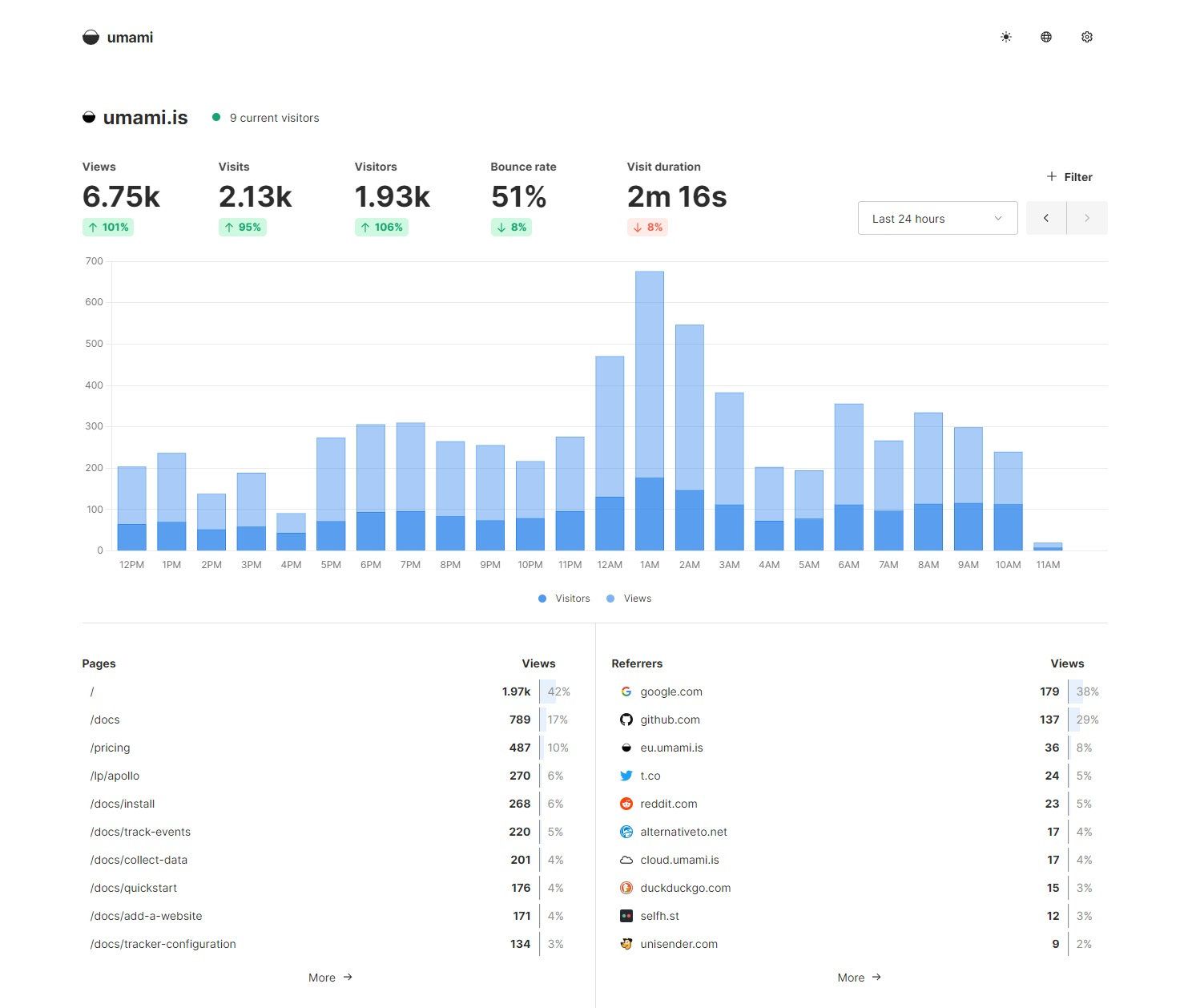
Below is a full VPS setup: Docker Compose for Umami and PostgreSQL, Nginx as the public reverse proxy, Let's Encrypt certificates through Certbot, plus the two maintenance jobs people tend to forget: backups and updates.
Why keep analytics data local
Website analytics can look harmless because the dashboard is clean. The data behind it is still behavioral data: visited URLs, timestamps, referrers, device information, country-level location, and any event names you define. With a third-party analytics service, that stream leaves your infrastructure by design.
Self-hosting Umami keeps that data on your side. Traffic records land in your PostgreSQL database, on your server, under your backup policy. You still need a privacy policy, and you still need to understand the consent rules that apply to your site. The difference is that you are not sending analytics into a large advertising ecosystem just to learn which blog post is getting traffic.
The server requirements are modest. A small KVM VPS is enough for a personal site or a few low-traffic projects. A larger instance gives PostgreSQL more room if you track several websites or keep data for a long time. Fast storage helps more than people expect because analytics is mostly database reads and writes.
What you need before installing Umami
You need:
- A Linux server with root or sudo access
- A domain or subdomain for Umami, such as
stat.example.com - DNS already pointing that hostname to your server's IPv4 address
- Ports 80 and 443 open on the server firewall
- A shell session as either
rootor a sudo-capable user
The Compose file below binds Umami to 127.0.0.1:3000, so the app port is not exposed directly to the public internet. Nginx accepts public HTTP/HTTPS traffic and proxies it to the local container.
Install Docker and Docker Compose
On Debian, one short path is to use extrepo if your release includes the Docker CE repository entry:
sudo apt update
sudo apt install extrepo
sudo extrepo enable docker-ce
sudo apt update
sudo apt install docker-ce docker-ce-cli containerd.io docker-buildx-plugin docker-compose-plugin
For other Linux systems, Docker provides a convenience script:
curl -fsSL https://get.docker.com -o get-docker.sh
sudo bash get-docker.sh
Docker documentation describes that script as useful for testing and development, so inspect it first if this is a production server. On Debian or Ubuntu, make sure the Compose plugin is present:
sudo apt install docker-ce docker-ce-cli containerd.io docker-buildx-plugin docker-compose-pluginOn CentOS Stream, Rocky Linux, or AlmaLinux, install the same packages through dnf after the Docker repository has been configured:
sudo dnf install docker-ce docker-ce-cli containerd.io docker-buildx-plugin docker-compose-pluginIf you are not running as root, add your current user to the docker group:
sudo usermod -aG docker $USERBefore testing, log out and back in, or run newgrp docker. The Docker Linux post-installation guide warns that membership in the docker group grants root-level privileges, so only add users who should have that level of access.
Enable Docker and confirm both Docker and the Compose plugin work:
sudo systemctl enable --now docker
docker version
docker compose version
Create the Umami Compose file
Create a dedicated directory for Umami:
mkdir -p ~/services/umami
cd ~/services/umami
Generate two random values before writing the file: one for Umami authentication tokens and one for PostgreSQL:
openssl rand -hex 32
openssl rand -hex 32
Create compose.yaml:
name: umami

services:
  umami:
    container_name: umami
    image: docker.umami.is/umami-software/umami:latest
    ports:
      - "127.0.0.1:3000:3000"
    environment:
      DATABASE_URL: postgresql://umami:CHANGE_ME_DB_PASSWORD@umami-db:5432/umami
      DATABASE_TYPE: postgresql
      APP_SECRET: CHANGE_ME_APP_SECRET
    depends_on:
      umami-db:
        condition: service_healthy
    init: true
    restart: always
    healthcheck:
      test: ["CMD-SHELL", "curl http://localhost:3000/api/heartbeat"]
      interval: 5s
      timeout: 5s
      retries: 5

  umami-db:
    container_name: umami-db
    image: postgres:18-alpine
    environment:
      POSTGRES_DB: umami
      POSTGRES_USER: umami
      POSTGRES_PASSWORD: CHANGE_ME_DB_PASSWORD
    volumes:
      - ./data:/var/lib/postgresql
    restart: always
    healthcheck:
      test: ["CMD-SHELL", "pg_isready -U $${POSTGRES_USER} -d $${POSTGRES_DB}"]
      interval: 5s
      timeout: 5s
      retries: 5
Replace both CHANGE_ME_DB_PASSWORD values with the same PostgreSQL password. Replace CHANGE_ME_APP_SECRET with a different random string. The Umami environment variable docs describe APP_SECRET as the value used to secure authentication tokens, so do not reuse it elsewhere.
Checked on July 2, 2026, Docker Hub lists postgres:18-alpine as an active official Postgres image tag. It is a reasonable choice for a fresh Umami install. For an existing install, treat database major versions carefully: make a pg_dump, test a restore, and only then change the image tag.
Start Umami
Pull the images and start the stack:
docker compose pull
docker compose up -d
Check the containers:
docker compose ps
docker compose logs -f umami
Umami listens on http://127.0.0.1:3000 from the host. Because the container is bound to localhost, you will not open it directly from your browser yet. Nginx will be the public entry point.
The default administrator account is:
- Username:
admin - Password:
umami
The Umami login guide says to change that password immediately after your first login. Do it before adding websites or sharing the URL.
Configure Nginx as a reverse proxy
Install Nginx:
# Debian or Ubuntu
sudo apt update
sudo apt install nginx

# CentOS Stream, Rocky Linux, or AlmaLinux
sudo dnf update
sudo dnf install nginx
For this example, the analytics hostname is stat.example.com. Replace it with your real hostname.
On Debian or Ubuntu, create /etc/nginx/sites-available/stat.example.com.conf:
upstream umami_backend {
    server 127.0.0.1:3000;
}

server {
    listen 80;
    listen [::]:80;

    server_name stat.example.com;

    location / {
        proxy_pass http://umami_backend;
        proxy_http_version 1.1;

        proxy_set_header Host $host;
        proxy_set_header X-Real-IP $remote_addr;
        proxy_set_header X-Forwarded-For $proxy_add_x_forwarded_for;
        proxy_set_header X-Forwarded-Proto $scheme;

        proxy_set_header Upgrade $http_upgrade;
        proxy_set_header Connection "upgrade";
    }
}
Enable it:
sudo ln -s /etc/nginx/sites-available/stat.example.com.conf /etc/nginx/sites-enabled/
sudo nginx -t
sudo systemctl reload nginx
On CentOS Stream, Rocky Linux, or AlmaLinux, put the same server block in:
/etc/nginx/conf.d/stat.example.com.confThen test and start or reload Nginx:
sudo nginx -t
sudo systemctl enable --now nginx
sudo systemctl reload nginx
Nginx configuration files under /etc/nginx/ require root privileges. If nginx -t fails, fix that before touching Certbot.
Add HTTPS with Certbot
Install Certbot and the Nginx plugin:
# Debian or Ubuntu
sudo apt install certbot python3-certbot-nginx

# CentOS Stream, Rocky Linux, or AlmaLinux
sudo dnf install epel-release
sudo dnf install certbot python3-certbot-nginx
Issue the certificate:
sudo certbot --nginx -d stat.example.comAfter Certbot edits the Nginx config, check the site:
sudo nginx -t
sudo systemctl reload nginx
Now open:
https://stat.example.com/Log in with admin and umami, then change the password from Settings before doing anything else. A public analytics dashboard with default credentials will not stay yours for long.
Certbot packages often install a systemd timer for renewals. Check it:
systemctl list-timers | grep certbot
sudo certbot renew --dry-run
If your install does not create a timer and you are following Certbot's pip/virtualenv method, the EFF Certbot instructions use a cron job like this:
echo "0 0,12 * * * root /opt/certbot/bin/python -c 'import random; import time; time.sleep(random.random() * 3600)' && sudo certbot renew -q" | sudo tee -a /etc/crontab > /dev/nullFor distro packages, prefer the package's timer when it exists. Run sudo certbot renew --dry-run either way, so you know renewal works before the certificate is close to expiry.
Add a website and install the tracking script
Once you are logged in, go to Websites and click Add website. The Umami add-a-website guide covers the two fields that matter: the name can be anything, and the domain should be the actual website domain so Umami can filter your own site correctly.
After saving the website, open its edit screen and copy the tracking code. The Umami collect data guide says to place that code in the <head> section of the site you want to track.
The snippet looks roughly like this:
<script defer src="https://stat.example.com/script.js" data-website-id="YOUR-WEBSITE-ID"></script>Visit your site, then return to the Umami dashboard. If no data appears, open the browser developer tools and check whether script.js and /api/send requests reach stat.example.com. Browser extensions and aggressive content blockers can block analytics scripts, even self-hosted ones.
Back up Umami
The data that matters lives in PostgreSQL. Create a backup directory and dump the database:
mkdir -p ~/services/umami/backups
cd ~/services/umami
docker exec umami-db pg_dump -U umami -d umami | gzip > backups/umami_$(date +%F).sql.gz
Copy that .sql.gz file somewhere outside the VPS. Also keep a copy of compose.yaml, because it records the image, ports, and environment variable shape you need for a clean restore.
If you host Umami on QDE, the platform-level daily backups are a useful second layer, but they are not a replacement for an application-level database dump. A dump is portable. A server snapshot is convenient. Keep both.
Update Umami
Back up first, then update from the Umami directory:
cd ~/services/umami
docker compose pull
docker compose up -d
Watch the logs after the update:
docker compose logs -f umamiThe Umami README recommends pulling the new Docker image and recreating the container for Docker-based updates. For major releases, read the release notes before you pull. Analytics data is small compared with a photo library, but losing it because you treated the database casually is still annoying.
Keep the analytics close to the app
Self-hosting Umami gives you useful traffic numbers without routing visitor data through Google Analytics. The moving parts are ordinary: Docker for the app and PostgreSQL, Nginx for the public hostname, Certbot for HTTPS, and a small backup routine you can run from cron.
The privacy benefit is strongest when the rest of the stack matches it. Run Umami on infrastructure you control, keep the database in a jurisdiction you understand, and avoid adding more third-party scripts than you removed.
QDE provides privacy-focused VPS hosting in the Netherlands with KVM virtualization, NVMe storage, 10 Gbps uplinks, full root access, and daily offsite backups. That is a practical place to run Umami while keeping analytics data under your own administration.
Frequently asked questions about self-hosting Umami
Is Umami free to self-host?
Yes. Umami is open source, and you can run it on your own server. Your cost is the VPS, domain, and the time you spend maintaining the service.
Does Umami replace Google Analytics?
For most small and medium websites, yes. Umami gives you page views, referrers, countries, devices, events, and campaign tracking. It does not replace every advanced Google Analytics workflow, but it covers the numbers many site owners actually use.
Do I need a big VPS for Umami?
No. A small VPS is enough for a personal site or a few low-traffic websites. If you track many domains, keep a long retention window, or run other services on the same machine, give PostgreSQL more RAM and disk headroom.
Why bind Umami to 127.0.0.1?
Binding the container to 127.0.0.1:3000 keeps the app port private. Only Nginx is exposed publicly on ports 80 and 443, which gives you one public entry point for TLS, headers, and access control.
Where does Umami store data?
In the Compose file above, Umami stores analytics data in PostgreSQL, and PostgreSQL writes its files under ~/services/umami/data on the host. The portable backup is the pg_dump output rather than the raw database directory.
What should I do right after the first login?
Change the default admin password. The official Umami docs state that the default account is admin with password umami, and the first task after logging in is to change it.