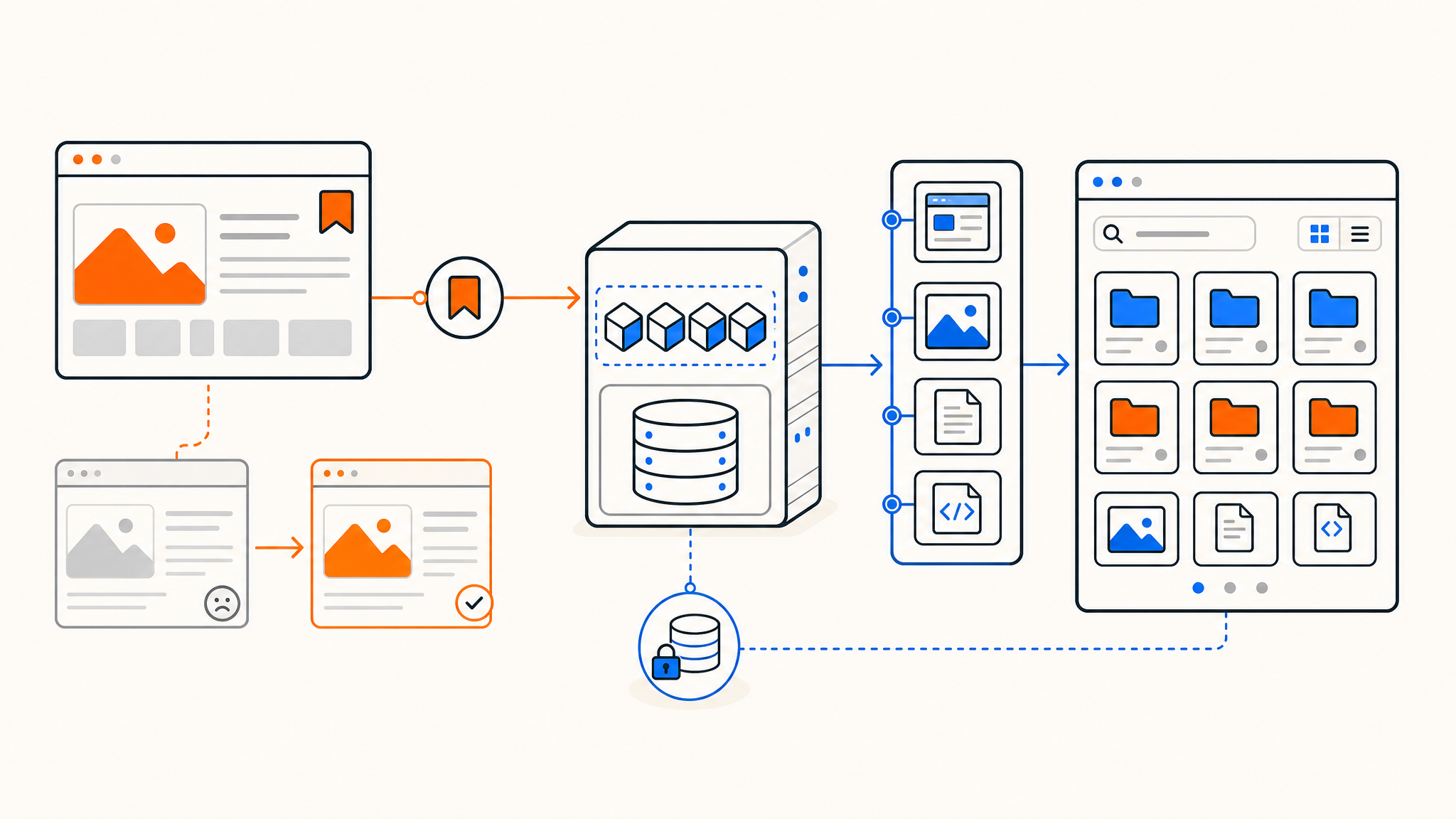
Bookmarks have a quiet failure mode. You save a page, come back a year later, and the link is dead, redirected, or rewritten into something unrecognizable. The web rots, and your carefully curated reading list rots right along with it.
That's the problem Linkwarden was built to solve, and it's why a lot of people choose to self-host Linkwarden instead of handing their reference library to a third-party service. It's an open-source bookmark manager that saves a full copy of every page you bookmark, a screenshot, a PDF, a single HTML file, and a clean readable version, so the content stays accessible even after the original goes offline. Think of it as a private Wayback Machine you own end to end, with collections, tags, search, and a few AI tricks layered on top.
This guide covers what Linkwarden does, what you need to run it, and how to deploy it with Docker on your own server. We'll also set up the parts most quick-start guides skip: full-text search, AI tagging, backups, and a reverse proxy so you can reach it over a real domain.
What Linkwarden actually does
At its core, Linkwarden is a bookmark manager. You save a link, drop it into a collection, and add some tags. The part that sets it apart is preservation. The team behind it built the whole app around the reality of link rot, so saving a bookmark also means saving the page itself.
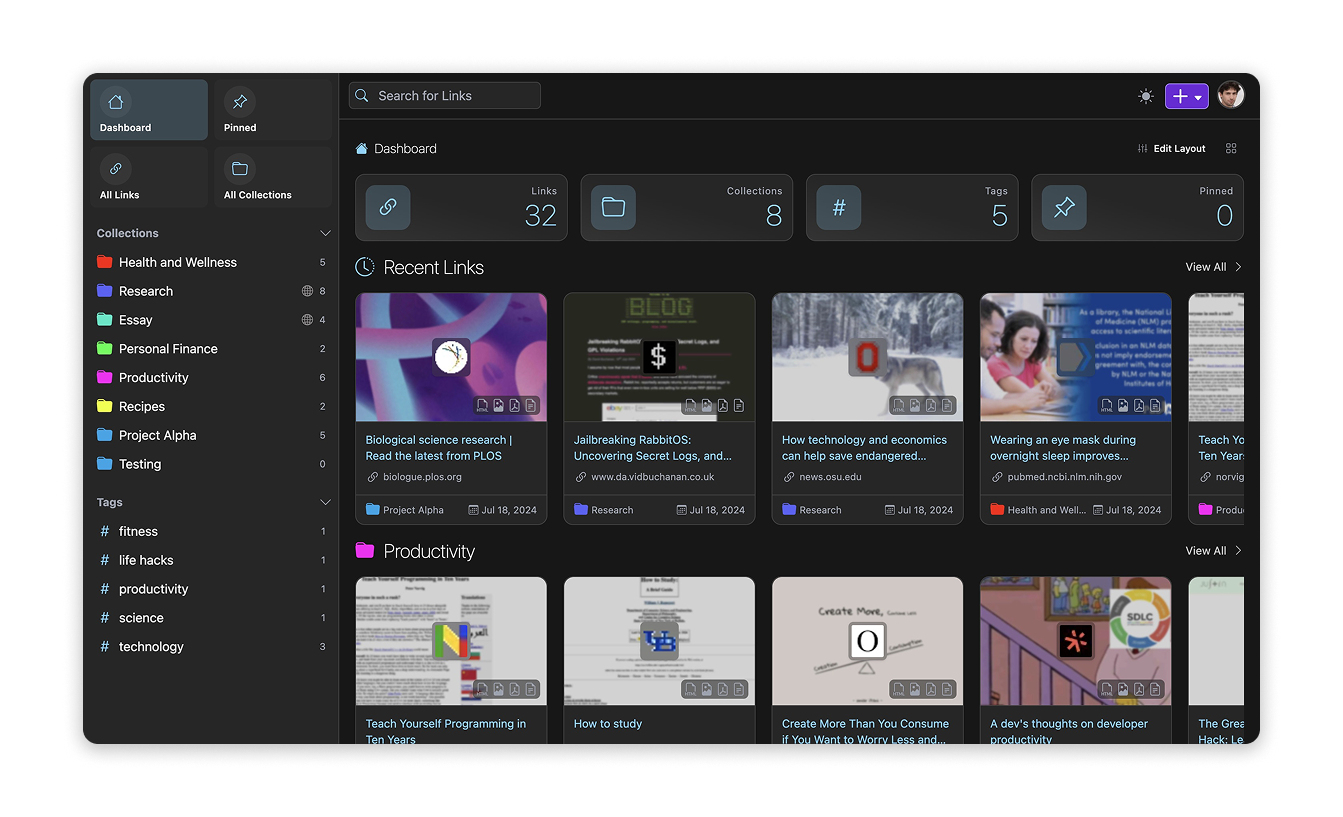
When you add a link, Linkwarden fetches the page and stores several formats locally: a full-page screenshot, a PDF, a single self-contained HTML file, and a stripped-down readable view for distraction-free reading. If you'd rather lean on a public archive too, it can optionally push a snapshot to the Internet Archive's Wayback Machine on your behalf. Either way, you keep your own copy.
The "and more" is where it earns a permanent spot in a self-hosted stack:
- Collections and nested sub-collections, plus multiple tags per link, for organizing a large library
- Full-text search across everything you've saved, powered by Meilisearch
- Local AI tagging that reads a page's content and suggests tags automatically
- RSS subscriptions that pull new articles into a collection on their own
- Shared collections with per-member permissions, handy for team research
- Reader view with text highlighting and annotation
- Chrome and Firefox extensions, a documented API, and bulk import or export
So it sits somewhere between a read-it-later app and a real web archive, which is a useful combination if you do research, write, or just hate losing good links.
Why run your own instance
Linkwarden offers a hosted Cloud plan, and it's a fair option if you don't want to manage anything. But self-hosting makes sense for a few reasons.
You own the data. Every screenshot, PDF, and HTML capture lives on your storage, not someone else's, which matters if you're archiving sensitive research, internal documentation, or anything you can't afford to lose access to. There are no per-seat fees either, so adding teammates to a self-hosted instance doesn't change your bill.
Privacy is the other half of it. A self-hosted Linkwarden instance only talks to the sites you're saving and, optionally, an AI provider you choose. Nothing about your reading habits gets shared with a third party. If data privacy is part of why you're self-hosting in the first place, keeping your bookmark archive in-house fits that goal.
What you'll need
Linkwarden's requirements are modest. The developers tested it on a server with 4 GB of memory and it ran smoothly; the heaviest moment is the initial build, and after that it's fairly light. That said, archiving generates real work, since every saved link spins up a headless browser to capture the page, so giving it a little headroom helps if you save in bulk.
For a clean Docker deployment you'll want:
- A Linux server with root access, ideally 4 GB of RAM or more
- Docker and Docker Compose installed
curland a text editor likenano
A small VPS handles a single-user instance comfortably. If you plan to archive heavily or run it for a team, a plan with solid CPU and NVMe storage makes the capture process noticeably faster, since screenshot and PDF generation is disk and CPU bound. You'll also need full root access to install Docker and manage the stack, which rules out most shared hosting.
How to self-host Linkwarden with Docker
The official Docker setup is the fastest path, and the project keeps it well documented. The compose file brings up three services together: Linkwarden itself, a PostgreSQL database, and Meilisearch for search.
1. Download the compose and environment files
SSH into your server, then create a folder and pull down the two files you need:
mkdir linkwarden && cd linkwarden
curl -O https://raw.githubusercontent.com/linkwarden/linkwarden/refs/heads/main/docker-compose.yml
curl -L https://raw.githubusercontent.com/linkwarden/linkwarden/refs/heads/main/.env.sample -o ".env"
2. Set your secrets
Open the .env file:
nano .envYou'll see something like this:
NEXTAUTH_URL=http://localhost:3000/api/v1/auth
NEXTAUTH_SECRET=VERY_SENSITIVE_SECRET
MEILI_MASTER_KEY=VERY_SENSITIVE_MEILI_MASTER_KEY
POSTGRES_PASSWORD=CUSTOM_POSTGRES_PASSWORD
You must change three of these to your own secret values: NEXTAUTH_SECRET, MEILI_MASTER_KEY, and POSTGRES_PASSWORD. Each should be a different long, random string. An easy way to generate them is:
openssl rand -base64 32Run that three times and paste in a fresh value for each. If a value contains special characters, wrap it in single or double quotes.
Leave NEXTAUTH_URL alone for now if you're testing locally. You'll only change it once you put the instance behind a domain, which we'll cover in a moment.
3. Start the stack
From inside the same folder, bring everything up:
docker compose up -dThe first run pulls the images and builds the app, so give it a few minutes. Once it settles, Linkwarden is listening on port 3000.
4. Create your account
Open http://your-server-ip:3000 in a browser and you'll land on the login screen. Click Sign Up to create the first user, using a password of at least eight characters. The first account you make is yours to manage; if this is a single-user setup, you'll likely want to disable open registration afterward in the settings so strangers can't create accounts on your instance.
At this point you have a working Linkwarden. Save a link and watch it generate the screenshot, PDF, and readable view automatically.
Putting it behind a domain
Reaching your instance by IP and port is fine for testing, but for daily use you'll want a real hostname with HTTPS. Run a reverse proxy like Caddy, Nginx, or Traefik in front of Linkwarden, point it at port 3000, and handle TLS there.
Once that's in place, update NEXTAUTH_URL in your .env to match your domain, for example https://links.yourdomain.com/api/v1/auth, then restart with docker compose up -d. If you don't already have a domain for this, you can register one and point an A record at your server. The official reverse proxy docs cover sample configs for the common proxies.
Setting up search and AI tagging
Search works out of the box because Meilisearch ships in the default compose file. As long as your MEILI_MASTER_KEY is set, full-text search across your saved pages just works, including the page content Linkwarden captured, not only titles and tags.
AI tagging is optional and turned off by default. When enabled, it reads the content of a page and suggests or auto-applies tags, which saves a lot of manual sorting once your library grows. You set it up by connecting an AI provider; Linkwarden supports hosted options like OpenAI and Anthropic, or a local model through Ollama if you'd rather keep everything on your own hardware. Running the model locally is the privacy-friendly choice and pairs naturally with a self-hosted setup. The AI tagging guide walks through the environment variables for each provider.
Backing up and updating your instance
Self-hosting means you're responsible for your own safety net, and Linkwarden stores its data in two places: the PostgreSQL database and a data volume holding all the screenshots, PDFs, and HTML captures. A complete backup needs both.
Dump the database with a one-liner you can drop into a cron job:
docker exec -t linkwarden-postgres pg_dump -U postgres postgres | gzip > linkwarden_$(date +%F).sql.gzThen back up the Docker volume that holds the captured files, since the database alone won't restore your archives. If your captures grow large, copying that volume offsite on a schedule is worth setting up early. Running on infrastructure with daily backups gives you a second layer underneath your own dumps, which is reassuring for an archive you don't want to rebuild from scratch.
Updating is straightforward. From your Linkwarden folder, pull the latest image and recreate the containers:
docker compose pull
docker compose up -d
Check the release notes before a major version jump, but minor updates are usually painless.
Conclusion
Linkwarden turns a fragile pile of bookmarks into a durable, searchable archive you fully control. With Docker, getting it running is a short job: pull two files, set three secrets, and start the stack. From there, adding search, AI tagging, a reverse proxy, and a backup routine rounds it out into something you can trust with years of saved reading.
The main thing self-hosting asks of you is a reliable server with root access and enough resources to handle the archiving work, which is exactly where the right VPS makes the difference.
Thanks for reading! If you're looking for somewhere to host it, QDE offers high-performance VPS hosting in the Netherlands with NVMe storage, 10 Gbps uplinks, and full root access, which suits a self-hosted archiving app like Linkwarden well.
Ready to start or want advice on the right plan? Contact our team and we'll help you find the best fit for your project.
Frequently asked questions about self-hosting Linkwarden
Is Linkwarden free to self-host?
Yes. Linkwarden is open-source, and self-hosting gives you every feature found in the Cloud plan at no license cost. Your only expenses are the server it runs on and, if you use a hosted AI provider, that provider's usage fees.
How much server power do I need?
A VPS with 4 GB of RAM runs a personal instance comfortably. The build step and on-demand page archiving are the most demanding moments, so more CPU and fast NVMe storage speed up screenshot and PDF capture if you save links in volume or run it for a team.
Is Linkwarden a real alternative to the Wayback Machine?
For personal use, yes. It saves full local copies of every page you bookmark as a screenshot, PDF, HTML file, and readable view, so your captures survive even if the original site disappears. It can also push snapshots to the public Wayback Machine, but the local copies are yours regardless.
Do I need Meilisearch for search to work?
The default Docker setup includes Meilisearch, so full-text search works as soon as you set the MEILI_MASTER_KEY value. If search returns nothing, confirm the Meilisearch container is running and the key matches.
Can I keep the AI tagging fully private?
Yes. Instead of a hosted provider, point Linkwarden at a local model running through Ollama on your own server. Page content never leaves your infrastructure, which fits a privacy-focused self-hosted setup.
How do I back up everything?
Back up both the PostgreSQL database, using pg_dump, and the Docker volume that stores the captured screenshots, PDFs, and HTML. The database alone won't restore your archived pages, so you need both for a complete recovery.